Have you ever seen a photo online and thought, “Where does this come from?” Or maybe you found a small, low-quality image and wanted a bigger, clearer version. You are not alone. Millions of people face these problems every day.
The good news is that image search techniques can help you solve these problems quickly. In this article, you will learn what image search is, how it works, and which tools you can use. By the end, you will know exactly how to find any picture online fast and easy.
What Is Image Search?
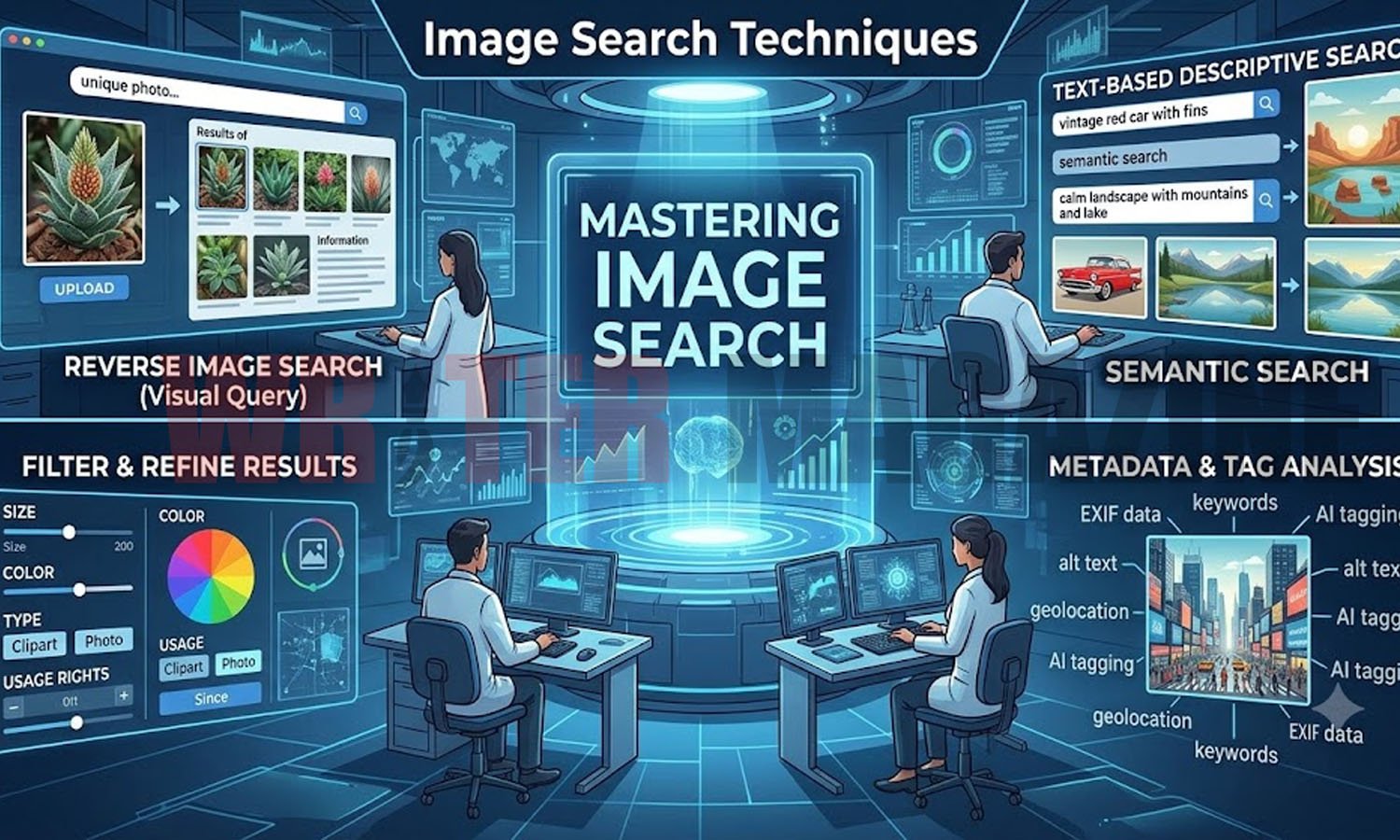
Image search is a way to find pictures online. You can do this in two ways:
- By typing words You type a description into a search engine, and it shows you related images.
- By uploading a picture You give the search engine a photo, and it finds similar or matching images on the internet.
Both methods are useful. Which one you use depends on what you need.
Image search is not just for finding pretty photos. People use it to check if a picture is real, find where a photo came from, track stolen images, or even shop for products they saw online.
Why Is Image Search Important?
Think about this — there are billions of images on the internet. Finding the right one by just typing words can be hard and slow.
Image search makes this easier. Instead of guessing the right keywords, you can use a picture to search directly. This saves time and gives you better results.
Here are some common reasons people use image search:
- Finding the original source of a photo
- Checking if a photo is real or has been edited
- Finding a higher quality version of an image
- Shopping online by searching for a product with a photo
- Avoiding copyright problems by checking who owns an image
- Identifying unknown objects, animals, or places
The Main Types of Image Search Techniques
There are several ways to search for images. Let’s look at each one clearly.
1. Keyword-Based Image Search
This is the most basic and common method. You type words into a search engine like Google, and it shows images related to those words.
For example, if you type “red roses in a garden,” Google will show you many photos of red roses in gardens.
This method works because search engines read the information attached to images — like the image title, description, and alt text. The more specific your words are, the better your results will be.
Best for: Finding general photos, stock images, or illustrations when you know what you want.
Tip: Use longer, more specific phrases. Instead of typing “dog,” try “golden retriever playing in the park.” This gives you much more useful results.
2. Reverse Image Search
This is where things get really interesting. Instead of typing words, you upload a photo or paste an image URL. The search engine then finds where that image appears online and shows similar pictures.
This technique is very useful for:
- Finding out who took a photo
- Checking if a photo has been used without permission
- Discovering if a news photo is real or fake
- Finding the same product in different online stores
How to do a reverse image search on Google:
- Go to images.google.com
- Click the camera icon in the search bar
- Upload a photo from your device or paste an image URL
- Wait a few seconds Google will show you matching and similar images
You can also right-click any image on a website and select “Search image with Google Lens” to search it directly.
3. Google Lens AI-Powered Visual Search
Google Lens is a newer and smarter version of image search. It uses artificial intelligence to understand what is in a photo not just match colors and shapes.
For example, if you point Google Lens at a plant, it can tell you the name of that plant. If you point it at a restaurant menu in another language, it can translate the text for you. If you see someone wearing a nice jacket, Google Lens can help you find where to buy the same one.
How to use Google Lens:
- On Android: Open the Google app or Camera app and tap the Lens icon
- On iPhone: Download the Google app, tap the camera icon in the search bar
- On computer: Go to Google Images, click the camera icon, and upload your photo
Google Lens is great because it goes beyond finding similar images. It gives you useful information about what is in the image.
4. Visual Similarity Search
This technique finds images that look similar to your photo. It compares colors, shapes, textures, and patterns to find visually matching results.
This is useful for designers, artists, and marketers who want to find images with a similar look or style. For example, if you have a photo of a minimalist living room, visual similarity search can help you find more photos with the same clean and simple style.
Tools like Pinterest are very good at this. When you find an image you like on Pinterest, it can suggest dozens of similar ones automatically.
5. Object and Text Recognition Search
Some tools can identify specific objects or text inside an image. For example, if an image contains a brand logo, a tool might recognize that logo and tell you which company it belongs to.
Google Lens can also read text inside images. If you take a photo of a handwritten note or a printed document, it can read the words and let you copy them. This is very helpful for students, researchers, and travelers.
Best Tools for Image Search
Now that you know the techniques, let’s look at the best tools to use.
Google Images and Google Lens
Google Images is the most popular image search tool in the world. It handles billions of searches every month. You can search by keyword or upload a photo.
Google Lens is the advanced version. It is built into most Android phones and is also available through the Google app on iPhone. It gives you much more information about what is inside a photo.
TinEye
TinEye is a website that specializes in reverse image search. It is great for finding out where an image has been used online. You can upload a photo or paste an image URL.
TinEye is especially useful for photographers and content creators who want to check if their photos are being used without permission.
Bing Visual Search
Bing, Microsoft’s search engine, also has a strong visual search tool. One useful feature is that you can draw a box around part of an image and search only that section. This is helpful when you want to find a specific object inside a larger photo.
Yandex Images
Yandex is a Russian search engine that many people use for reverse image search. It is known for being very good at finding faces and matching photos of people. It is also useful when Google does not return enough results.
Pinterest Visual Search
Pinterest is not just for saving ideas. It also has a visual search tool built in. You can click on any part of an image and search for more images that look similar. This is great for finding home decoration ideas, fashion inspiration, and design styles.
How Image Search Works Behind the Scenes
You might be wondering — how does a search engine understand what is in a photo?
When you upload an image, the system breaks it down into smaller pieces of data. It looks at:
- Colors — What shades and tones are in the image?
- Shapes — What forms and outlines are present?
- Textures — What does the surface look like?
- Patterns — Are there repeating designs or structures?
This data is turned into numbers, which the system then compares to billions of stored images in its database. It finds the closest matches and shows them to you.
Modern tools like Google Lens go a step further. They use deep learning — a type of artificial intelligence — to understand the meaning of an image. This is why Google Lens can tell you a plant’s name or recognize a famous building. It does not just match pixels; it actually understands what it is looking at.
Practical Tips to Get Better Results
Here are some simple tips to help you get better results when using image search:
- Use a clear, high-quality image. Blurry or low-resolution photos often give poor results.
- Crop your image. If you only want to search for one object in a photo, crop out everything else before searching.
- Try more than one tool. Google might not find what TinEye or Yandex can. Using multiple tools gives you better results.
- Add keywords after searching. After doing a reverse image search, you can add words to narrow down the results.
- Use different angles. If one photo does not work, try a different photo of the same subject from another angle.
- Be specific with keyword searches. The more details you include, the more relevant your results will be.
Real-Life Uses of Image Search
Image search is useful for many people in different situations. Here are a few real examples:
- Students can use Google Lens to scan a page in a textbook and search for more information about the topic.
- Shoppers can take a photo of a product they saw in a shop and find the same item online — often at a better price.
- Journalists use reverse image search to check if a news photo is genuine or has been taken from another story.
- Designers use visual similarity search to find inspiration and explore different styles.
- Travelers can use Google Lens to identify a famous building or monument they see while visiting a new place.
- Content creators check if their images are being used on other websites without their permission.
Common Mistakes to Avoid
People sometimes make mistakes when using image search. Here are a few to watch out for:
- Using a very small or blurry image — This often gives bad results. Try to use a clear photo.
- Expecting perfect results every time — Image search is good, but it is not always 100% accurate. Sometimes you need to try a few different tools.
- Only using one tool — Different tools have different strengths. Use more than one for the best results.
- Ignoring copyright — Just because you found an image online does not mean you can use it freely. Always check the image license before using it in your work.
Conclusion
Image search techniques have changed the way we find and understand pictures online. Whether you are typing keywords, doing a reverse image search, or using Google Lens on your phone, these tools help you find what you are looking for quickly and easily.
The key is to know which technique to use for your specific need. For general photos, keyword search works well. For finding the source of a photo, reverse image search is the best choice. For identifying objects and getting more information, Google Lens is the most powerful option.
Start using these techniques today. With a little practice, image search will become one of the most useful skills you have online.
10 Frequently Asked Questions About Image Search Techniques
1. What is image search and how does it work?
Image search is a way to find pictures online using either words or a photo. When you upload an image, the system analyzes its colors, shapes, and patterns, then compares them to millions of stored images to find matches or similar results.
2. How do I do a reverse image search on Google?
Go to images.google.com, click the camera icon in the search bar, and either upload a photo from your device or paste the URL of an image. Google will show you where that image appears online and similar results.
3. Can I use image search on my phone?
Yes. On both iPhone and Android, you can use the Google app or Chrome browser. Tap the camera icon in the search bar to open Google Lens and search using photos from your camera roll or by taking a new photo.
4. What is the difference between Google Images and Google Lens?
Google Images is a basic image search tool where you can search by keywords or upload a photo. Google Lens is more advanced — it uses AI to understand what is inside a photo and can identify objects, read text, translate languages, and suggest similar products.
5. Is reverse image search free to use?
Yes. Tools like Google Images, Google Lens, TinEye (basic version), and Bing Visual Search are all free to use. You do not need to create an account for most of them.
6. Can image search help me find stolen photos?
Yes. If someone uses your photo without permission, you can do a reverse image search using your original photo. The tool will show you all the websites where that image appears. TinEye is especially useful for this.
7. Why are my reverse image search results not accurate?
This can happen if the image is too blurry, too small, or has not been indexed by the search engine. Try cropping the image, using a higher quality version, or trying a different tool like Yandex or TinEye.
8. What is the best tool for image search?
It depends on what you need. Google Lens is best for identifying objects and getting information. TinEye is best for tracking where an image has been used. Yandex is good for matching faces. Bing Visual Search is useful for searching specific parts of an image.
9. Can I use image search to find products and buy them online?
Yes. You can take a photo of a product you like and use Google Lens or Bing Visual Search to find where you can buy the same or similar item online. This is very helpful for fashion, furniture, and electronics.
10. Is it legal to use images I find through image search?
Not always. Finding an image through search does not mean it is free to use. Always check the image license. Look for images marked as “free to use” or use websites that offer copyright-free photos like Unsplash or Pixabay to stay safe.
Read Also: What Is Lufanest? Simple Guide to Its Meaning, Uses, and Why Everyone Is Talking About It
Stay connect with us for every lastes information Writermagazi